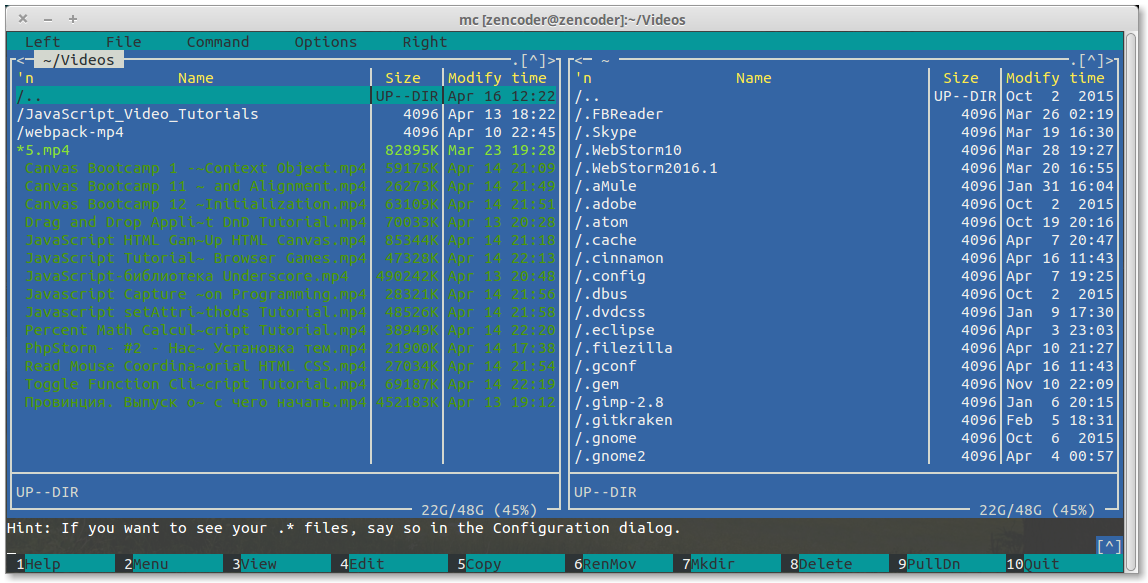
When transferring a website from the terminal, first of all we enter the receiving server. Of course you can do this from local machine too, but why add an extra link… So let’s begin:
scp -r -l 10 -c blowfish user@donor.host:/home/path/to/folder/* /home/path/to/folder/local
-r – flag for copying directories
/* – if you want to copy all files in directory but not the root directory itself.
-l 10 – limit bandwidth speed.
-c blowfish – change default cipher (AES-128) to blowfish for significant speed gain.
user@donor.host – server credentials
/home/path/to/folder – source directory path
/home/path/to/folder/local – target directory path
Second option is rsync utility, it is more advanced and can show progress bars:
rsync -r -v –progress -e ssh user@remote-system:/address/to/remote/file /home/user/
Now create an empty database on the receiving side, save access values and proceed:
mysqldump -u db_user -h address.server.com -pPassword db_name > backup-filename.sql – Export database backup
mysql -u db_user -h address.server.com -pPassword db_name < backup-filename.sql – Import database backup
Now edit database connection settings files and everything is ready, simple, convenient, and without UI.
That’s how simple we transferred a site from terminal.